Software
Barcode billing softwarewith labels built in
Scan the barcode on a pack, or print your own labels for loose and unbranded stock, and bill without hunting through lists. Works with the phone camera and with USB scanners on a computer.
Free for 15 invoices a monthAndroid and browserHindi, Gujarati and Hinglish
What it does
Camera scanning
The phone camera reads EAN-13 and EAN-8, UPC, Code 128, Code 39, Code 93, ITF and QR codes while you bill.
USB scanners on the computer
A USB barcode scanner types the code into the web app’s item box and adds the item, like a keyboard.
Your own labels
Print barcode labels for any item on A4 label sheets, with the name, code and price, as many as you need.
Codes on items
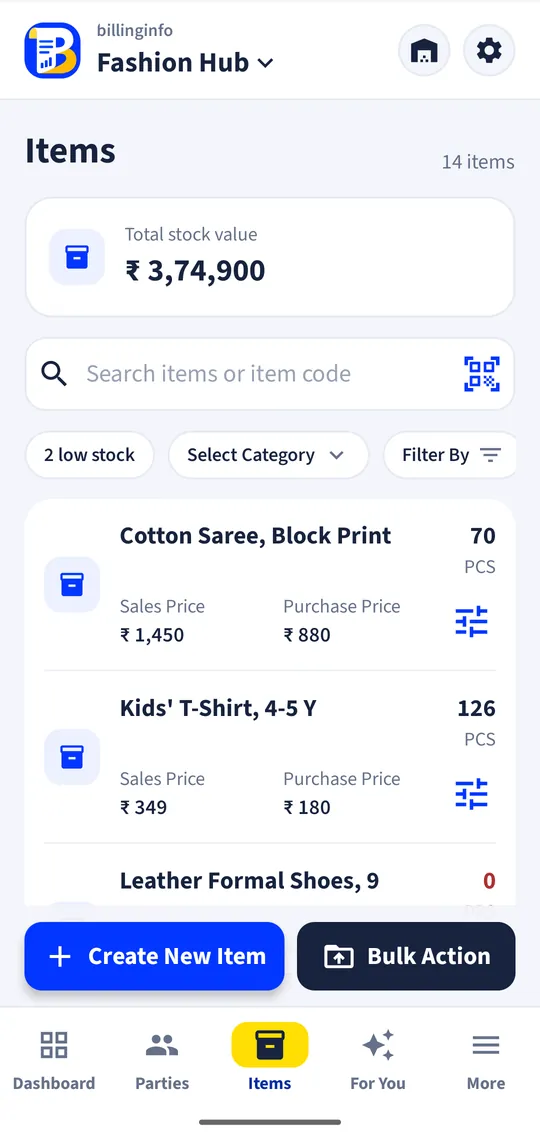
Each item keeps its barcode, so scanning works on sales, purchases, returns and stock adjustments.
Generate codes
No barcode on the pack? Generate a 13-digit code for the item in one tap and print it on labels.
Works with variants
Give each size or colour its own item and code, so the bill and stock show exactly what sold.
When barcodes pay off
Barcodes save the most time where a shop has many similar items and a queue: garments in sizes, cosmetics in shades, stationery, toys and packaged groceries. Instead of searching “shirt blue M”, the cashier scans and moves on, and the wrong-item mistakes that throw stock off stop happening.
Branded packs already carry a code from the manufacturer; scan it once when you add the item. For your own stock, loose goods or items whose labels have come off, print labels from billinginfo and stick them on.
What to check before you buy a scanner
You may not need one. The phone camera handles most counters. For a desk with a computer, any USB scanner that works as a keyboard (most do) will work with the web app: click in the item box and scan. Label printing in billinginfo is on A4 label sheets with a normal printer, so there is no special label printer to buy.
A worked example
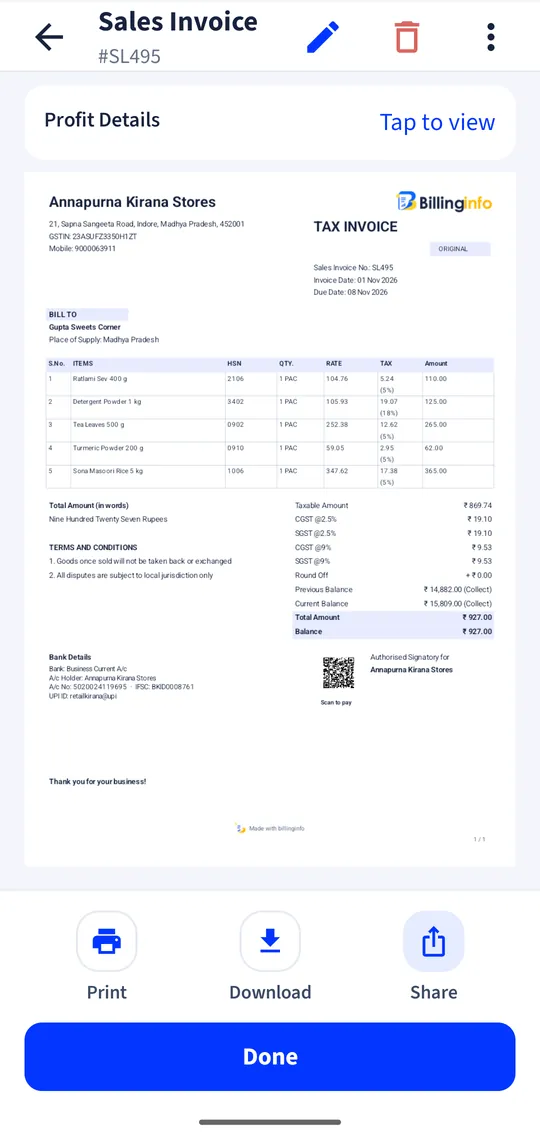
A garment store receives 30 T-shirts in three sizes. The owner creates three items, one per size, and prints 10 labels for each on an A4 sheet. At the counter the cashier scans two shirts and a pair of socks; each line fills in with its price and GST, and the stock of each size drops by one. At month end, the item-wise sales report shows which size sold best.
Get started
- Open an item and scan or type its barcode, or leave it to generate labels.
- Print labels from the item screen on A4 label sheets.
- On a bill, tap the scan button (phone) or scan into the item box (computer).
- Check item-wise sales and stock in reports.
Which barcode types work?
The scanner reads EAN-13, EAN-8, UPC-A, UPC-E, Code 128, Code 39, Code 93, ITF and QR codes. Labels print as Code 128.
What if an item has no barcode?
Tap Generate Barcode on the item: billinginfo gives it a 13-digit code with a valid check digit, ready to print on labels, so loose and unbranded goods can be scanned too.
Do I need a barcode printer?
No. Labels print on A4 label sheets from any printer your phone or computer can use.
Can I make a barcode for free?
Yes. Try our free barcode generator for EAN-13 and Code 128 images.
Does barcode billing work on the free plan?
Yes. Scanning and labels are part of billing on every plan.
Your next bill can
be a better one.
Free for 15 invoices a month. Try Plus for a week at ₹9. On your Android phone and in your browser.